FFmpeg Is Not the Web Player. It Is the Pipeline That Makes Playback Reliable.
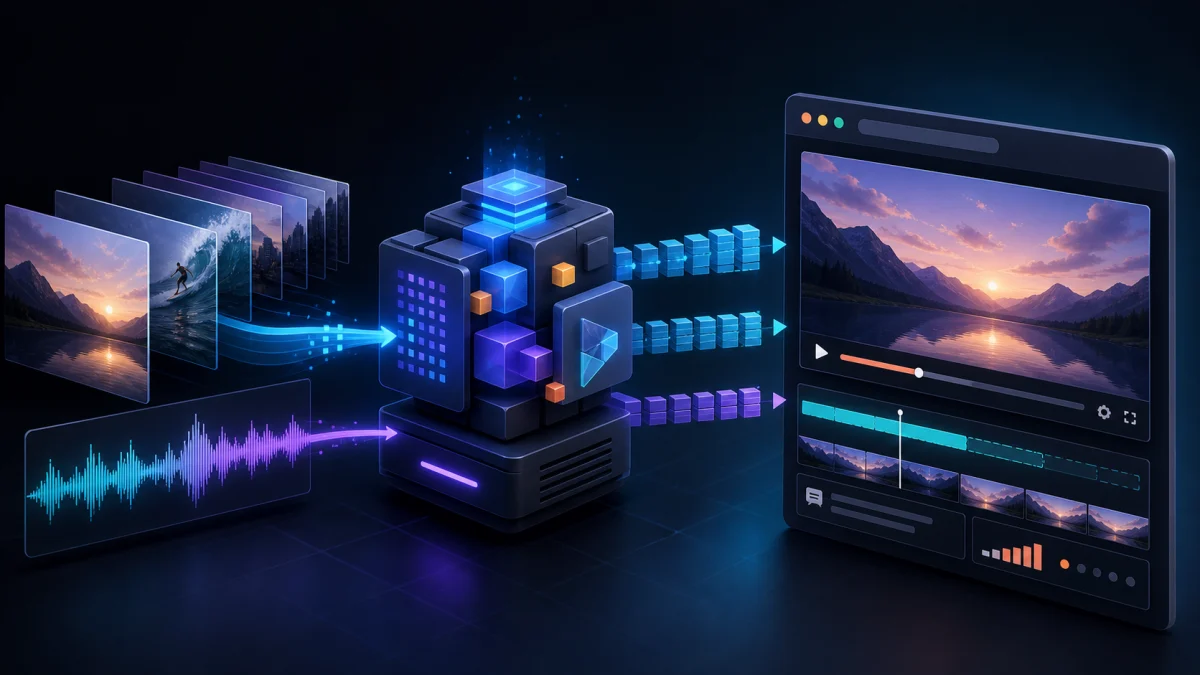
A browser video player can have polished controls and still fail at its most basic job. The play button appears, but the first frame takes too long. Seeking jumps to the wrong moment. A file plays in one browser and produces silence in another. The progress bar claims the video is buffered while the server ignores byte-range requests. FFmpeg is often described as the player in this architecture, but that description hides the useful boundary. The browser owns playback through HTMLMediaElement, Media Source Extensions or WebCodecs. FFmpeg prepares, inspects, transcodes and packages the media so those browser APIs receive something they can use predictably.
Start by separating the player from the media pipeline
The native video element is a state machine connected to a browser decoder, network stack and rendering path. FFmpeg is a set of command-line tools and libraries for reading, filtering, encoding and muxing media. It can create files or streams a web player consumes, but it does not replace the browser's play promise, autoplay rules, fullscreen behavior, accessibility controls or Media Session integration. This separation is useful during debugging. If a file cannot be decoded, inspect codecs and pixel formats. If it decodes locally but stalls from the site, inspect HTTP delivery. If media plays but the interface shows the wrong duration, inspect player state and timestamps. Calling the entire chain “the FFmpeg player” makes three different problems look like one.
02
Probe before you prescribe
A filename extension does not tell you enough about a media asset. MP4 is a container and can hold streams that do not share the same browser support. Before changing anything, use ffprobe to read stream and format metadata. A practical inspection command is ffprobe -v error -show_entries format=filename,format_name,duration,start_time,bit_rate -show_entries stream=index,codec_type,codec_name,profile,pix_fmt,width,height,r_frame_rate,sample_rate,channels,channel_layout -of json input. The result tells you whether the source is already a reasonable browser target, whether its timestamps begin somewhere unexpected and whether audio exists at all. It also prevents a costly mistake: transcoding a compatible H.264/AAC file when moving MP4 metadata or fixing server headers would have been enough.
03
Progressive MP4 is still the simplest useful baseline
For ordinary on-demand clips, a single MP4 URL connected to a video element is difficult to beat. H.264 video, AAC audio and a broadly compatible pixel format such as yuv420p form a common baseline across modern browsers. A typical compatibility encode is ffmpeg -i input.mov -map 0:v:0 -map 0:a:0? -c:v libx264 -pix_fmt yuv420p -preset medium -crf 21 -c:a aac -b:a 160k -movflags +faststart output.mp4. The optional audio map avoids failing on silent sources. CRF is a quality target rather than a fixed bitrate; the appropriate value depends on content and delivery goals. The important architectural decision is not the exact number. It is producing a deliberate playback format instead of assuming the camera, screen recorder or editing export already matches the web.
04
Fast start is metadata placement, not streaming magic
A normal MP4 often writes its moov metadata after the encoded media. A browser may need that index before it can report duration or seek accurately. FFmpeg's movflags +faststart performs a second pass that moves the index to the beginning. That can materially improve progressive startup because the browser can understand the file before downloading its tail. It does not create adaptive streaming, reduce the encoded bitrate or compensate for a server that refuses byte ranges. FFmpeg's official MOV/MP4 muxer documentation also notes that faststart does not apply in the same way to fragmented output. Use it for completed progressive files, then verify the deployed response instead of assuming the flag solved every startup problem.
05
Byte ranges make the seek bar honest
Progressive playback depends on the relationship between MP4 metadata and HTTP delivery. When the user seeks to a late timestamp, the browser commonly requests a byte range containing the needed samples. The server or CDN should respond with a valid partial response, Content-Range and an appropriate media content type. If it always returns the entire file, seeking may be slow, bandwidth-heavy or unreliable even though the MP4 itself is valid. This is why testing a local file is insufficient. Open developer tools against the deployed URL, seek far beyond the buffered region and inspect the request. The browser player, encoded asset and host are one playback system, but only one of them is changed by an FFmpeg command.
06
Stream copy is a real optimization when the streams are already safe
If the codecs and parameters are already supported but the container or metadata arrangement is wrong, remuxing can avoid quality loss and large compute cost. A command such as ffmpeg -i input.mov -map 0 -c copy -movflags +faststart output.mp4 copies compatible streams into a new MP4 container. This is not universally valid: an incompatible codec does not become browser-compatible merely because it sits inside an MP4 file, and unusual timestamps or attachments may require more selective mapping. The point is to make the decision from probe results. A web upload pipeline should classify assets into direct use, stream-copy remux and full transcode rather than sending every input through the most expensive path.
07
HLS solves a different delivery problem
HTTP Live Streaming packages media as a playlist plus segments. It becomes valuable for long videos, changing network conditions, multiple quality levels or live delivery. FFmpeg's HLS muxer can produce playlists and segments, but segment duration is governed by keyframes: the muxer cuts on the next keyframe after the target time. A closed GOP and intentional keyframe interval are therefore part of the packaging design. For a six-second target at 30 frames per second, a pipeline might use a 180-frame GOP, disable scene-cut keyframes when exact alignment is required, and generate independent segments. The correct settings vary, but the invariant is stable: bitrate variants need aligned boundaries if the player is expected to switch between them cleanly.
08
Fragmented MP4 is the bridge to Media Source Extensions
Media Source Extensions allows JavaScript to append encoded chunks into SourceBuffer objects connected to a media element. Common implementations use fragmented MP4 initialization and media segments rather than a single finished MP4. FFmpeg's MOV/MP4 muxer supports fragmentation flags and CMAF- or DASH-compatible output. Fragmentation stores packet metadata with chunks, which allows progressive production and makes interrupted output more recoverable, but the official documentation warns that fragmented files can be less compatible with other applications. Choose it because the player architecture needs appendable segments, not because fragmented output sounds more modern. A plain video URL remains simpler when adaptive or programmatic buffering is unnecessary.
09
WebAssembly FFmpeg belongs to preparation, not steady-state playback
Running an FFmpeg build through WebAssembly can be useful for local imports: probe a file, generate a proxy, normalize audio, extract a poster frame or create a browser-friendly export without uploading the source. It is usually a poor substitute for the browser's native decoder during continuous playback. A software decode loop consumes more CPU and memory, duplicates work already optimized by the browser and complicates audio/video synchronization. WebCodecs can provide low-level hardware-backed frame access where supported, while HTML video remains the strongest default for ordinary playback. In a local-first editor, the practical pattern is to use browser-native playback for preview and reserve FFmpeg-style processing for boundaries the native media stack cannot cross.
10
Timestamps are where editing and playback meet
A web player usually thinks in seconds from its media timeline. Edited projects also carry source offsets, clip-local time, playback rate and sequence position. FFmpeg can normalize or preserve timestamps depending on input and options, but a player must still map its project clock intentionally. A trimmed clip that represents source seconds 42 through 49 should seek to sourceStart plus local project time multiplied by playback rate. Concatenated media must not inherit unexplained gaps or negative starts. When a progress bar jumps or audio begins late, inspect packet timestamps and the application's mapping before re-encoding blindly. A transcode can hide a timestamp bug by rewriting the timeline, but hiding is not the same as understanding.
11
Player errors need evidence from every layer
A reliable web player records enough information to distinguish network, demux, decode and interface failures. Capture the media element error code, currentSrc, readyState, networkState, duration, currentTime and buffered ranges. Record HTTP status, response headers and whether the failing request was a playlist, initialization segment, media segment or byte range. Keep ffprobe output for the deployed asset. Then reproduce with a minimal native video element before blaming a larger framework. This evidence turns “video does not play” into a specific claim: the AAC track is missing, Safari rejected the profile, the CDN returned HTML for a segment, CORS blocked a manifest, or the UI attempted to seek before metadata loaded.
12
Build a test matrix around user actions, not only file validity
An encoded file can pass a probe and still provide a poor product experience. Test a cold first load on a throttled connection, seek into an unbuffered region, pause and resume repeatedly, switch tabs, rotate a phone and reconnect after a transient failure. Confirm captions, poster behavior, keyboard controls, focus visibility and muted autoplay expectations. For HLS, test a variant change and a segment error. For local Blob URLs, verify cleanup does not revoke the active source. The goal is not to prove that FFmpeg produced bytes. It is to prove that the browser can acquire, decode and control those bytes throughout the interactions the interface promises.
13
The durable architecture keeps each tool in its strongest role
FFmpeg is strongest at deterministic media inspection and transformation. The web server is responsible for correct, cacheable and range-aware delivery. HTMLMediaElement is responsible for broadly compatible playback, WebCodecs for lower-level frame access and Media Source Extensions for JavaScript-managed streaming buffers. The application coordinates those pieces and presents honest state to the user. Keeping the boundary explicit makes the system easier to improve: a new codec can change the encode ladder, a different CDN can change delivery, and a redesigned player can change controls without rewriting the entire pipeline. The most reliable web player is not the one that uses FFmpeg everywhere. It is the one that uses FFmpeg exactly where media needs to become predictable.
14
Primary references
The behavior described here follows the FFmpeg command-line and formats documentation at ffmpeg.org and ffmpeg.org, together with the browser media references for HTML video, Media Source Extensions and WebCodecs at developer.mozilla.org. Check the documentation for the FFmpeg build and browsers you deploy because encoder availability, defaults and platform codec support can change.
MEDIA PACKAGING LAB · SEPTEMBER 7, 2026
Two packaging assumptions, checked against actual bytes
We generated an eight-second moving test pattern and a 660 Hz tone, then tested two small changes to its media pipeline. Moving an MP4 index preserved every encoded packet. Asking for two-second HLS segments did not produce two-second segments until the source keyframes were aligned. The inputs, outputs, packet records and script are published below so these results can be inspected without trusting a screenshot.
The faststart output: 320 × 180, 30 fps, H.264 yuv420p, mono AAC at 48 kHz. Its sound is a steady synthetic tone, with no speech. This embedded player is an asset preview; the recorded experiment used native command-line FFmpeg, not browser automation.
Recorded environment
FFmpeg 8.0.1 with libx264 and AAC; Darwin 25.3.0 x86_64; Python 3.14.6. Complete build record.
Controls
Eight seconds; 240 video frames; one video and one audio stream. CRF 23, medium preset, closed GOP, scene cuts disabled, no B-frames. Both GOP variants were generated from the same procedural source recipe.
Case 1: the file changed, but the encoded media did not
We first wrote an ordinary MP4 with a 90-frame GOP, then remuxed that exact file using this command:
The script reads each top-level MP4 box's declared size and advances by that size. It does not search blindly for the letters moov, which could also occur inside payload data. Offsets below are zero-based bytes from the start of the file.
The index moved from byte 331,128 to byte 32. It occupies 8,278 bytes in both files. Every one of the 240 video packets and 376 audio packets retained its SHA-256 payload hash, timestamp, duration and flags, in per-stream order. The whole-file checksums differ because the container layout changed. Same media payload and same file size are stronger evidence here than two previews that merely look alike.
For this sample, the complete index is available within the first 8,310 bytes of the faststart file. That is a byte-layout observation, not a measured reduction in startup time or transferred bytes. We did not collect browser requests, cache state or network timings. The meaning of faststart comes from the official MOV/MP4 muxer documentation; stream copy copies encoded packets without a decode/encode cycle.
Inspect the raw packet hashes for the ordinary MP4 and faststart MP4. We used ffprobe -show_packets -show_data_hash sha256, whose payload-hash behavior is documented in the ffprobe options. Probe metadata for the source and remux preserves the stream parameters for review.
Case 2: a two-second HLS target produced three-second segments
Next we packaged the ordinary MP4 as HLS with fragmented MP4 segments. The source's keyframes were at 0, 3 and 6 seconds. Keeping -c copy retained that schedule, so the resulting playlist contained 3, 3 and 2 seconds, despite -hls_time 2.
The successful control was a fresh encode of the same generated picture/audio recipe using -g 60 -keyint_min 60 -sc_threshold 0 -bf 0 -flags +cgop. After the same stream-copy HLS packaging step, it produced four two-second segments. This control changes the encode, so it is not a lossless fix to the 90-frame-GOP file and not a video-quality comparison. The arithmetic of 60 frames / 30 fps applies to this constant-frame-rate fixture; it is not a universal prescription for variable-frame-rate uploads.
This is consistent with the FFmpeg HLS muxer documentation: the target is constrained by the next usable keyframe. An existing MP4 cannot acquire new encoded keyframes by changing the playlist target alone. Also, writing independent_segments is not a substitute for preparing a suitable GOP. Here the encode explicitly requests a closed GOP; the keyframe records and playlist durations show the boundaries we obtained.
Both local playlists resolved every referenced initialization/segment file and decoded to a null output with exit code 0. That checks this local package, including its audio. It does not test an adaptive bitrate ladder, browser seeking or recovery from a missing HTTP segment. Keep init.mp4 with the corresponding .m4s files: a media fragment by itself is not the complete asset represented by the playlist.
Reproduce the observations and keep the result inspectable
Download the complete case kit for both MP4s, the 60-frame-GOP control, both HLS directories and raw records. In its extracted directory run shasum -a 256 -c SHA256SUMS to verify the published files.
Install a native FFmpeg build that includes libx264 and AAC, with ffmpeg and ffprobe on PATH. Download reproduce.py and run python3 reproduce.py --output ./ffmpeg-reproduction. It generates its own source; no footage, API key or network download is required.
Open the new run.json. Its checks cover MP4 box placement, packet payload/timestamp identity, HLS durations and local segment presence. The script exits nonzero if those observed invariants differ. Preserve its version files if your results differ; a different encoder build can change exact file hashes.
If a completed compatible MP4 has its index after the media, a stream-copy faststart remux is a concrete container-level repair to investigate. If an HLS playlist misses its requested segment cadence, inspect source keyframe PTS before changing the player. This experiment demonstrates those two diagnoses locally. The next deployment check is separate: verify the actual hosted responses, cold playback and seeking in the browsers you support. No browser performance, WebAssembly throughput or production delivery result is claimed by these files.
Synthetic fixture created for AI Creator on September 7, 2026 with FFmpeg's built-in testsrc2 and sine sources. No stock footage, recorded person or third-party audio was used. The experimental script, measurements and explanatory text are original; the official references establish option semantics, while the linked artifacts establish this run's observations.
REFERENCE
Frequently asked questions
Does FFmpeg play the video inside a web page?
Usually no. FFmpeg prepares or transforms the media; the browser plays it through HTML video, Media Source Extensions or a lower-level API such as WebCodecs.
Should every upload be converted to H.264 and AAC?
No. Probe first. Compatible streams may be used directly or remuxed with stream copy, avoiding an unnecessary generation loss and encode cost.
What does movflags +faststart actually do?
For a completed progressive MP4, it moves the moov index toward the beginning so a browser can learn the file structure earlier. It does not create adaptive streaming or fix HTTP delivery.
Why does an MP4 play locally but seek badly online?
The deployed server may not support byte-range requests correctly, may return the wrong MIME type or may be serving stale or transformed content.
When should a web player use HLS?
Use it when adaptive quality, long-form delivery, live streaming or segmented recovery justifies playlists, multiple assets and additional player logic.
Should FFmpeg run in WebAssembly for playback?
It can help prepare unsupported local files, but native browser playback is generally more efficient for continuous preview. Use WebAssembly processing only where it provides a clear capability.
How do I debug a generic media error?
Collect ffprobe metadata, media element state, buffered ranges and network responses, then reproduce with a minimal native video element to isolate packaging, delivery, decode and UI problems.
AUTHOR
Martin Delophy
Independent full-stack and algorithm engineer in China with 10 years of frontend, AI and audio/video development experience, including 5 years focused on AI. His open-source work covers browser AI, ONNX, WebGPU, Transformers, Stable Diffusion and local-first creative tools.