Three new photographs: a cup, fine whiskers, and a crowded launch pad
The earlier portrait is a single example of subject retention. This new set tests three different decisions: whether a cup and its accessories stay together, whether thin whiskers survive, and whether a small rocket can be isolated among larger towers. Each source photograph is linked beside the actual browser export. We publish imperfect results because the point is to show where automatic selection needs review.
Test setup and measurements
Test environment
Codex in-app browser on macOS arm64, viewing the local static deployment preview at http://localhost:4173/removebackground/.
Run conditions
Three separate real browser uploads and completed worker inferences. Default automatic processing; no hand-drawn mask, edge repair, output crop or re-encoding. This is a local deployment-preview run, not a production-network speed test.
Model and settings
rmbg_model_quantized.onnx with the site's removebackground.worker-1b297622.js and ONNX Runtime WASM SIMD. The interface uses a 1024 × 1024 model input and restores the aspect ratio with a 1024-pixel long edge.
Limits of the measurements
Alpha percentages count transparent, partial and opaque pixels. Even alpha 254 counts as partial, so this is not the area of damaged edges. These values are not accuracy, quality, confidence or pass-rate scores. No hand-labelled ground-truth mask or timing benchmark is claimed.
Public-site recheck: A separate September 7 visit to the hosted tool used its built-in portrait sample and reached the actual comparison view: an 896 × 1440 source and a 637 × 1024 PNG preview. That confirms one public sample-to-preview path. The download event was not captured, cache was not cleared, and the three cases below remain labelled as local-preview tests. See the public-browser record.
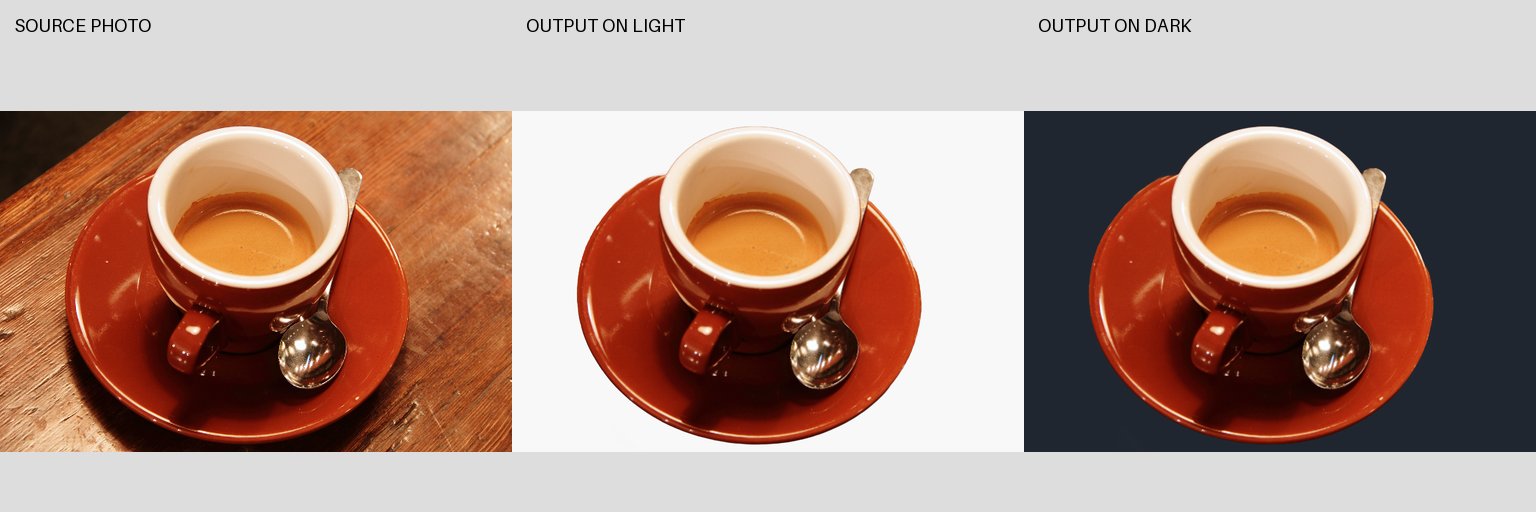
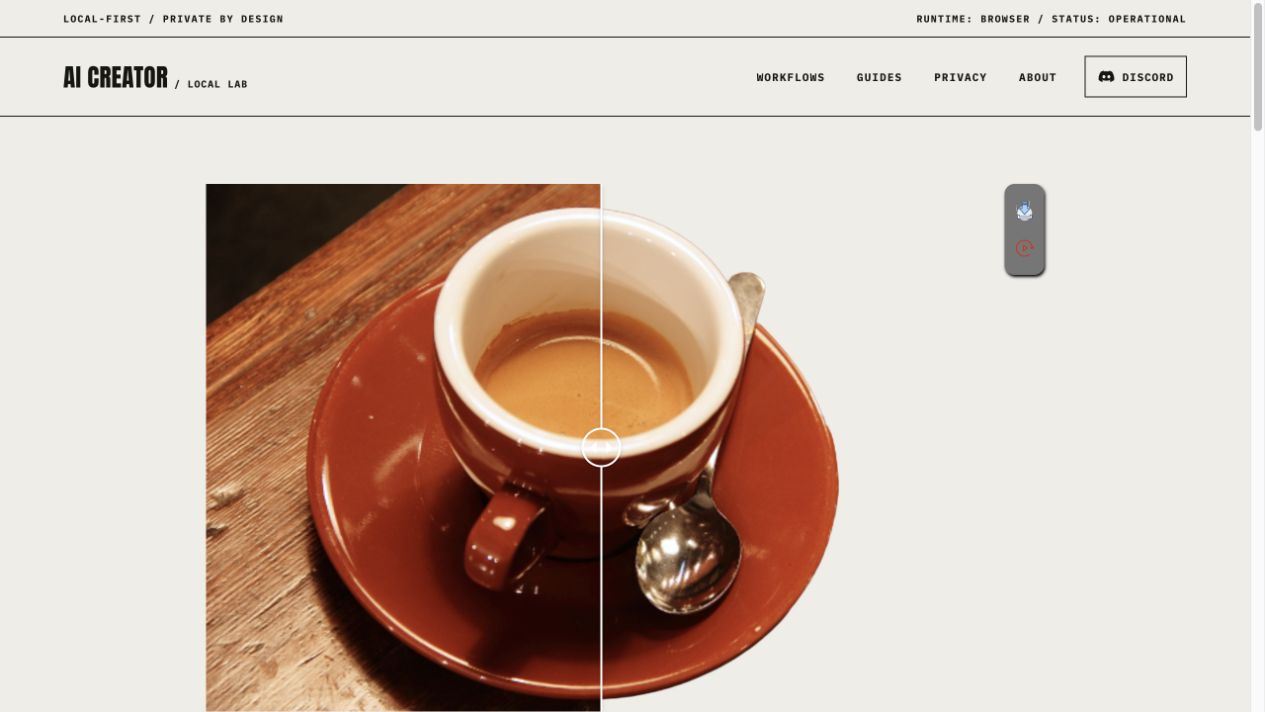
1. Product still life: define whether the accessories belong
Review target: Keep the complete coffee service: cup, saucer and spoon. Remove the wooden tabletop.
The same exported alpha is composited onto light and dark fields for inspection. These backgrounds are diagnostic additions; the downloadable output above retains transparency.
Observed result: The automatic output retains the cup, saucer and both visible ends of the spoon while removing the surrounding wood grain. On light and dark review fields, the service remains readable as a group and the saucer's outer ellipse stays connected. The bright line around the porcelain rim is also visible in the source; it should not automatically be mistaken for an alpha halo.
Publication decision: Accept as a draft cutout of the complete coffee service at ordinary display size. Reject for a cup-only catalog brief: the saucer and spoon remain. Automatic foreground selection does not know which accessory a shop intends to sell.
Photo: Rachel Michetti · Coffee photograph courtesy of Pikolo Espresso Bar · CC0, as documented by scikit-image. The source file is unmodified. The cutout is our newly recorded model output.
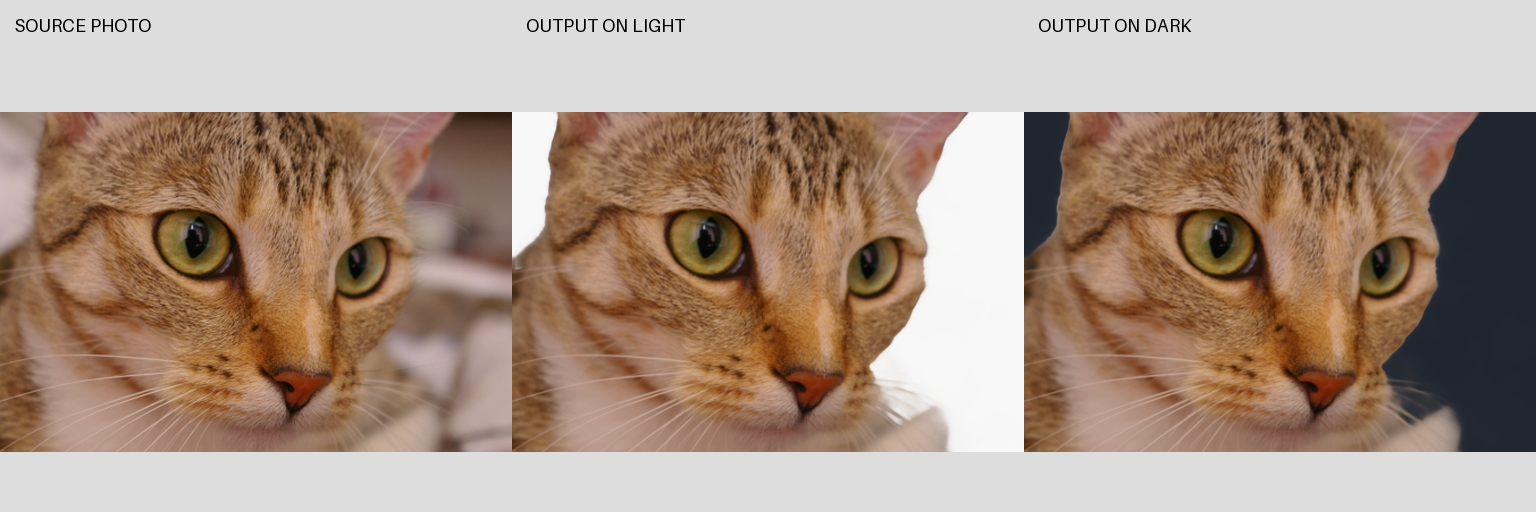
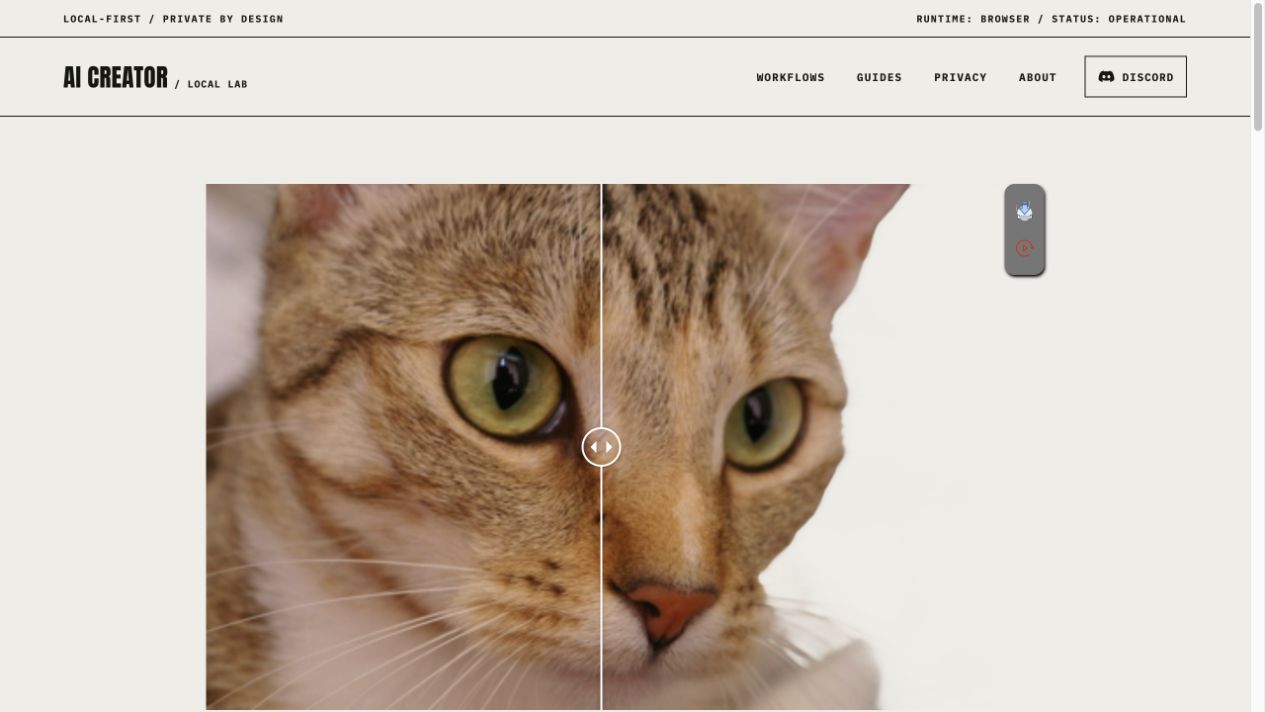
2. Fine fur: a recognizable face still loses boundary detail
Review target: Keep the visible cat and the thin whiskers extending beyond its cheek, while removing the soft background.
The same exported alpha is composited onto light and dark fields for inspection. These backgrounds are diagnostic additions; the downloadable output above retains transparency.
Observed result: The eyes, nose and broad fur silhouette remain. Long whiskers crossing the body on the left are visible, but that alone does not prove good extraction: those strands sit over retained foreground. At the right cheek, where fine strands cross the removed background, the exported boundary shortens or merges their outer tips. The effect is easier to see over the dark field. The original framing already cuts through the ears and body; the output cannot supply those missing regions.
Publication decision: Keep as an inspectable draft, but reject when the brief requires the complete visible whisker silhouette or a polished animal cutout. Refine the right-side boundary manually in an editor with mask controls. This automatic result does not establish hair-matting quality.
Photo: Stefan van der Walt · Chelsea the cat · CC0, as documented by scikit-image. The source file is unmodified. The cutout is our newly recorded model output.
3. Crowded scene: the selected foreground is broader than the brief
Review target: Isolate the central rocket alone. Exclude the four surrounding towers and the launch-pad lights.
The same exported alpha is composited onto light and dark fields for inspection. These backgrounds are diagnostic additions; the downloadable output above retains transparency.
Observed result: Most of the blue sky becomes transparent, while the central rocket, all four towers and several starburst lights remain. Many openings in the lattice towers are also cleared. The file therefore demonstrates considerable background removal, yet it does not deliver the requested rocket-only subject. The near-white review field makes the unwanted infrastructure and retained light flares especially easy to inspect.
Publication decision: Reject for the stated rocket-only task. The scene has several strong foreground structures, and the automatic interface offers no subject prompt to exclude the towers. Use an editor with an explicit selection or mask, then review the rocket's fine support geometry separately. A high transparent-pixel percentage does not mean the intended object was isolated.
Photo: SpaceX · Falcon 9 carrying DSCOVR at the launch complex · Public domain, as documented by scikit-image. The source file is unmodified. The cutout is our newly recorded model output.
What changes between these three jobs
A product cutout is judged against a delivery brief: keeping a saucer may be correct for a coffee-service image and wrong for a cup-only catalog. Fine fur calls for a different decision: a readable cat silhouette can still lose real whiskers. In a crowded scene, the first question is whether the model selected the intended object at all. These are three distinct acceptance tests, so a single “background removed” status does not settle any of them.
Reproduce the tests and inspect source files
Download one source photograph above and open Background Remover. Upload the file without cropping or re-encoding it, then wait for the model to load and the comparison view to appear.
Use the default automatic run; the tested interface has no subject prompt or manual mask refinement. Save the PNG before editing. Repeat separately for the other two sources.
Inspect the PNG over white and a dark neutral field. Compare the saucer and spoon, the whiskers outside the cheek, and the rocket against the neighbouring towers. Match the desired subject to the original photograph.
Download the measurement script into the same folder as the six source/output files. Name the exports coffee-output.png, chelsea-output.png and rocket-output.png. With Python, Pillow and NumPy installed, run python measure-artifacts.py to reproduce the dimensions, SHA-256 hashes and alpha counts. The optional review-sheet script rebuilds the labelled light/dark comparisons.
The three sources are established sample photographs distributed by scikit-image. Their hashes match its v0.25.2 data registry. They broaden the subjects in this guide, but are not a representative benchmark, a new photo shoot or a basis for a universal success percentage.
03
Remove the background in four steps
Open Background Remover and choose a JPG, PNG or BMP image up to 5 MB.
Keep the tab open while the model loads and processes your image.
Compare the cutout with the original. Check that it kept the subject you wanted, then inspect fine edges over light and dark backgrounds.
Download the PNG to preserve transparency. If unwanted objects remain or edges need repair, finish with manual mask controls in an image editor.
How segmentation works and how to prepare the source01
What background removal actually does
A segmentation model estimates which pixels belong to the foreground subject and which belong to the background. The result is converted into an alpha mask: opaque areas remain visible, transparent areas disappear, and partially transparent pixels preserve soft transitions. Hair, fur, glass, motion blur and shadows are difficult because their boundaries are not binary. A useful result therefore depends on both the model and the source image.
02
Choose a suitable source image
Use the highest-resolution original available. Clear contrast between subject and background usually improves the initial mask. Avoid screenshots that have already been compressed several times. If the subject has fine hair or transparent fabric, even lighting and a simple background make edge estimation easier. Cropping excessive empty space before processing can also keep the subject large enough for the model to analyze.
05
Privacy and limitations
The core workflow is designed to run in the browser whenever the device supports it. Browser processing reduces unnecessary file transfer, but it does not make every linked service local. Review the privacy description for each workflow and avoid confidential material when using remote features. Very large images can require substantial memory, while older phones and browsers may be slower or unsupported.
REFERENCE
Frequently asked questions
Why does the first run take longer?
The browser may need to download and initialize the AI model. Later visits are often faster after caching.
Which format keeps transparency?
PNG and WebP can preserve transparency; JPEG cannot.
Can I use the result commercially?
Your ability to use it depends on the rights to the source image and any people, products or trademarks shown.
Why is hair difficult?
Individual strands mix foreground and background colors, so the edge contains many partially transparent pixels.
Earlier test record, files and measurements
OBSERVED OUTPUT / BACKGROUND REMOVAL
A real cutout, reviewed on its edges
This pair is included as review evidence, not as a promise of a perfect result. The output removes the dark portrait background and preserves the main silhouette. It also shows why a transparent PNG still needs inspection before publication.
Compare subject retention and alpha-edge behavior over contrasting backgrounds.
SAMPLE LIMIT
One portrait; no product, glass, fur or batch-throughput claim.
REPRODUCE THE CHECK
Download the linked source image and open it in Background Remover.
Wait for a visible cutout, export the PNG and keep the untouched source beside it.
Review the whole silhouette at delivery size, then inspect hair, fingers and accessories at 100 percent over light and dark colors.
01
What the result supports
The person, hair ornament, hand, clothing and most of the outer silhouette remain recognizable after the background is removed. The transparent output can be placed over a new background and is materially different from the source.
02
What the alpha channel records
The published PNG is not a flattened preview. File inspection finds 32.54 percent fully transparent pixels, 16.62 percent partially transparent pixels and 50.84 percent fully opaque pixels. The substantial partial-alpha region is why hair and soft boundaries need review rather than a binary pass or fail.
03
What still needs review
Fine hair against the original dark background is the hardest boundary. The right-side ribbon and dark wisps retain soft or uneven pixels, while some delicate details around the hair ornament are simplified. Check those areas over both a light and dark test color, and reject the export if the new background shows through solid subject areas.
04
A failure signature worth rejecting
A dark halo over a light destination background means old-background color survived in partially transparent pixels. A pale cut line over a dark destination means the mask removed too much edge color. Either defect is easier to see after compositing than on a checkerboard.
AUTHOR
Martin Delophy
Independent full-stack and algorithm engineer in China with 10 years of frontend, AI and audio/video development experience, including 5 years focused on AI. His open-source work covers browser AI, ONNX, WebGPU, Transformers, Stable Diffusion and local-first creative tools.